


Walkthrough
January 03, 2010
This site works better with Mozilla Firefox

Image Zoom Features
Image Zoom integrates into your browser in a such way that you may not know about all the features that it provides. By completing this small introduction to Image Zoom, you can see exactly what features image zoom is adding to Firefox, Thunderbird or Mozilla.
Scroll Wheel Zooming
Now that you have image zoom installed, try zooming the firefox logo. Follow the instructions below which assume you have the default mouse options set.
Note:
- You may need to disable "autoscrolling" to use the middle mouse button with image zoom.
- Using Mouse features can have unpredictable results when using with other mouse enabled extensions.
- Answers extension conflicts with mouse scrolling in Image Zoom. Contact authors for a fix or disable answers extension to use mouse zooming.
| Hold down the right mouse button and scroll the mouse wheel back and forth to zoom in and out |  |
|
| Hold down the right mouse button and click the left mouse button to fit the image to the screen | ||
| Hold down the right mouse button and click the middle mouse button to restore the image to its original dimensions |
Context Menu Zooming
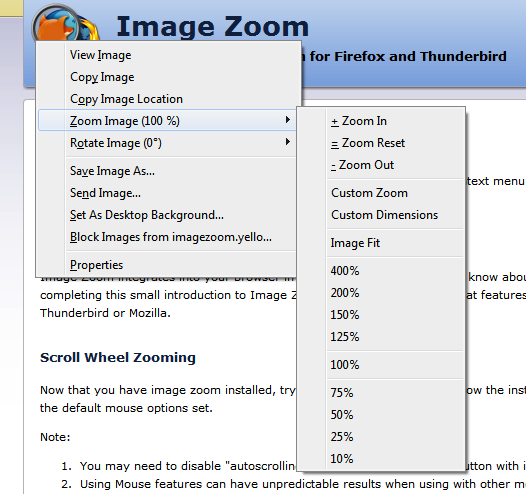
By clicking on an Image in a webpage with the right mouse button, you can show the context menu which will have Image Zooming options. These items give you simple access to various zooming functions and their display in the context menu is configurable from the options. Try it out on the image to the right. "Image Fit" is particularly useful if you have a very high resolution image on a web page or in an email and you would like reduce it to the size of your screen.
Note: Image zoom does not work with background images or HTML inputs that appear as images
Context Menu Rotating

By clicking on an Image in a webpage with the right mouse button, you can show the context menu which will have Image Rotation options. These items give you simple access to various rotation functions and their display in the context menu is configurable from the options. Try it out on the image to the right.
Note: Image zoom does not work with background images or HTML inputs that appear as images